Managing Contacts
Learn how to create contact lists and add your audience to CastBrick.
Managing Contacts
Before you can send any SMS campaigns, you need an audience. In CastBrick, you organize your audience into Lists.
This guide will show you how to create a list and add contacts to it, so you're ready to launch your first campaign.
1. Create a Contact List
Think of a List as a folder for a specific group of people (for example, "Newsletter Subscribers" or "VIP Customers").
- Open the Contacts page from the sidebar menu.
- Under the Lists tab, click the Add List button.
- Enter a clear name for your list (e.g., "Holiday Promo") and an optional description.
- Click Create.
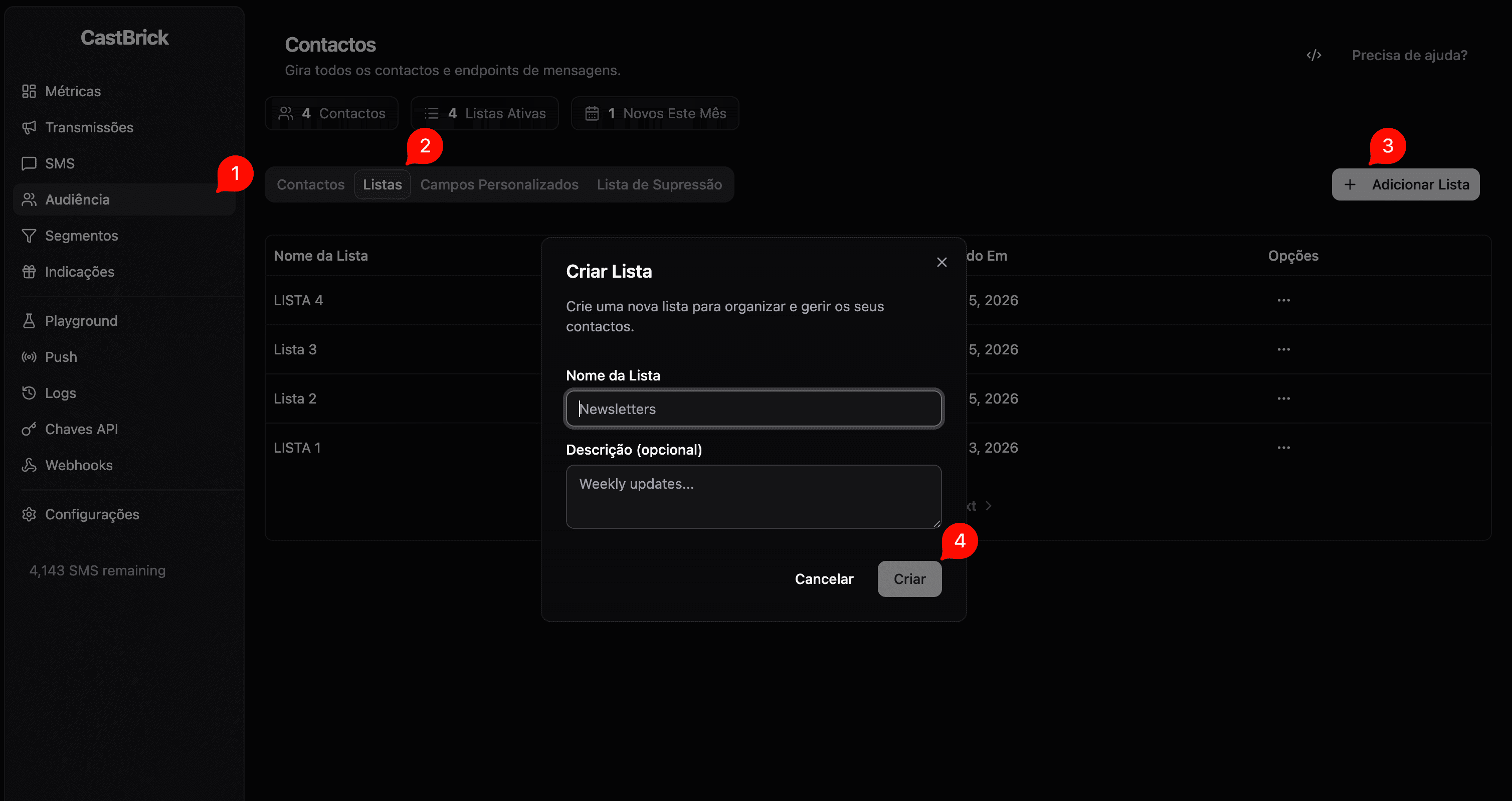
Your new list will automatically open, ready for you to add contacts!
2. Add Contacts Manually
If you only need to add a few people, you can add them one by one or paste a quick list.
Option A: Type or Paste
- Inside your opened list, click the Add Contacts button.
- Select the Type / Paste tab.
- Paste phone numbers or email addresses into the text box (you can separate them by commas or new lines).
- Click Process Add Contacts.
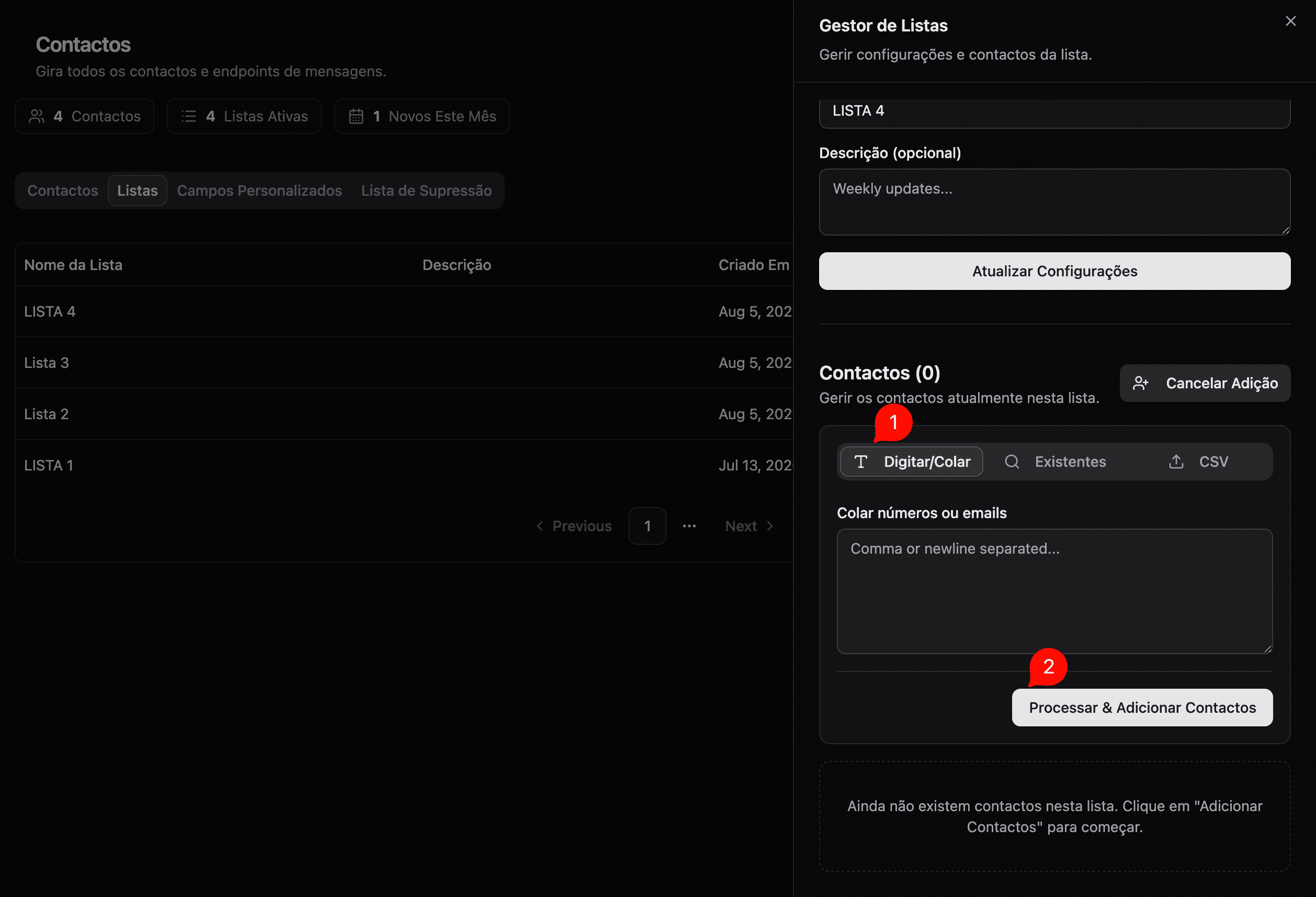
Option B: From Existing Contacts
If you already have contacts in your CastBrick account that aren't in this list yet:
- Click the Existing tab.
- Use the search bar to find specific people.
- Check the boxes next to the contacts you want to include.
- Click Process Add Contacts.
3. Bulk Import via CSV (Recommended)
If you have hundreds or thousands of contacts, uploading a spreadsheet (CSV file) is the fastest way.
- Inside your opened list, click the Add Contacts button.
- Select the CSV Upload tab.
- Click the upload area and select your
.csvfile from your computer. (Note: Ensure your file has a column for phone numbers). - Click Process Add Contacts.
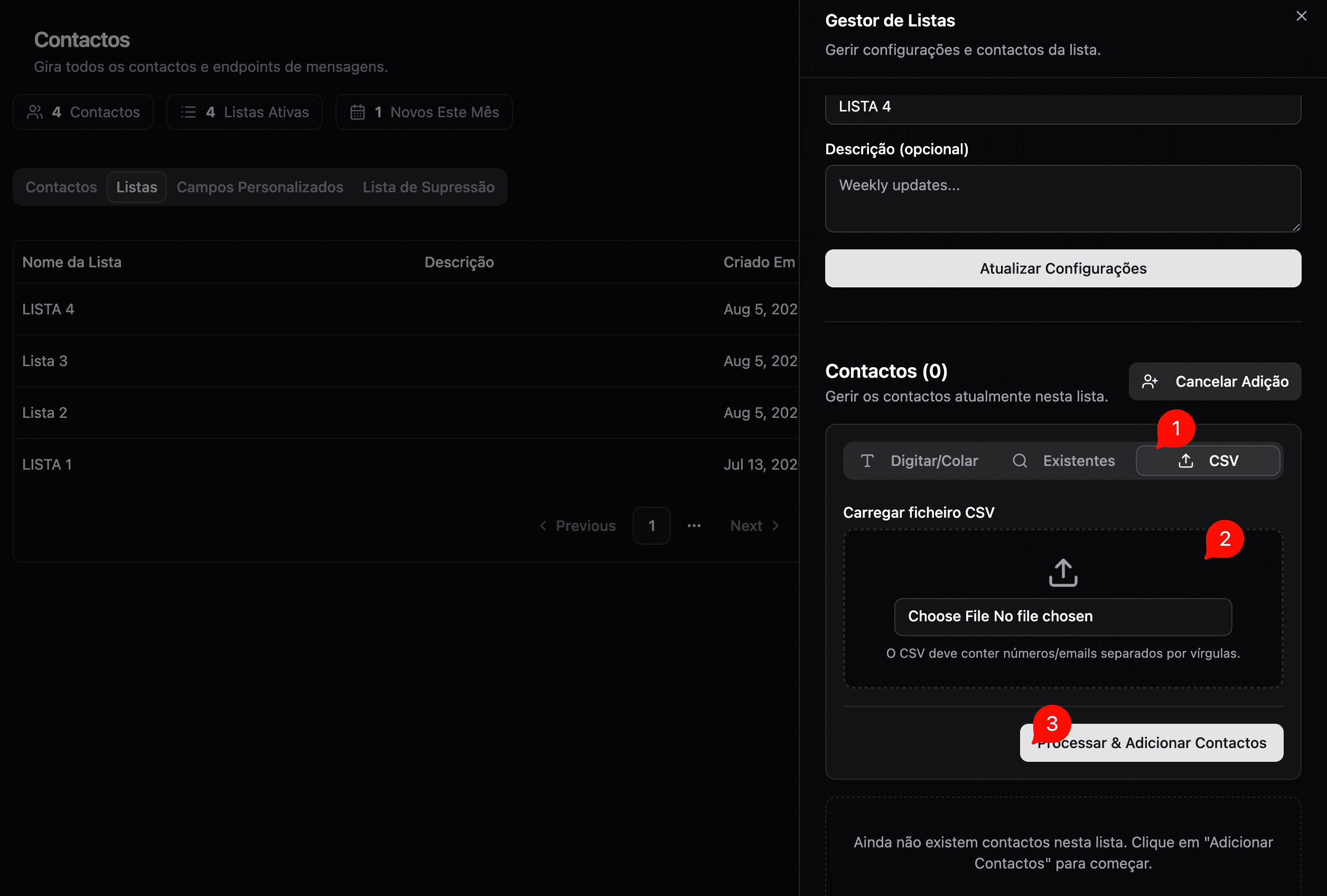
You're all set! Your list is now populated and you are ready to use it in your next Broadcast campaign.